
Solid Security Integration
Apply Solid Security settings, release lockouts and check security status on client sites from MainWP.
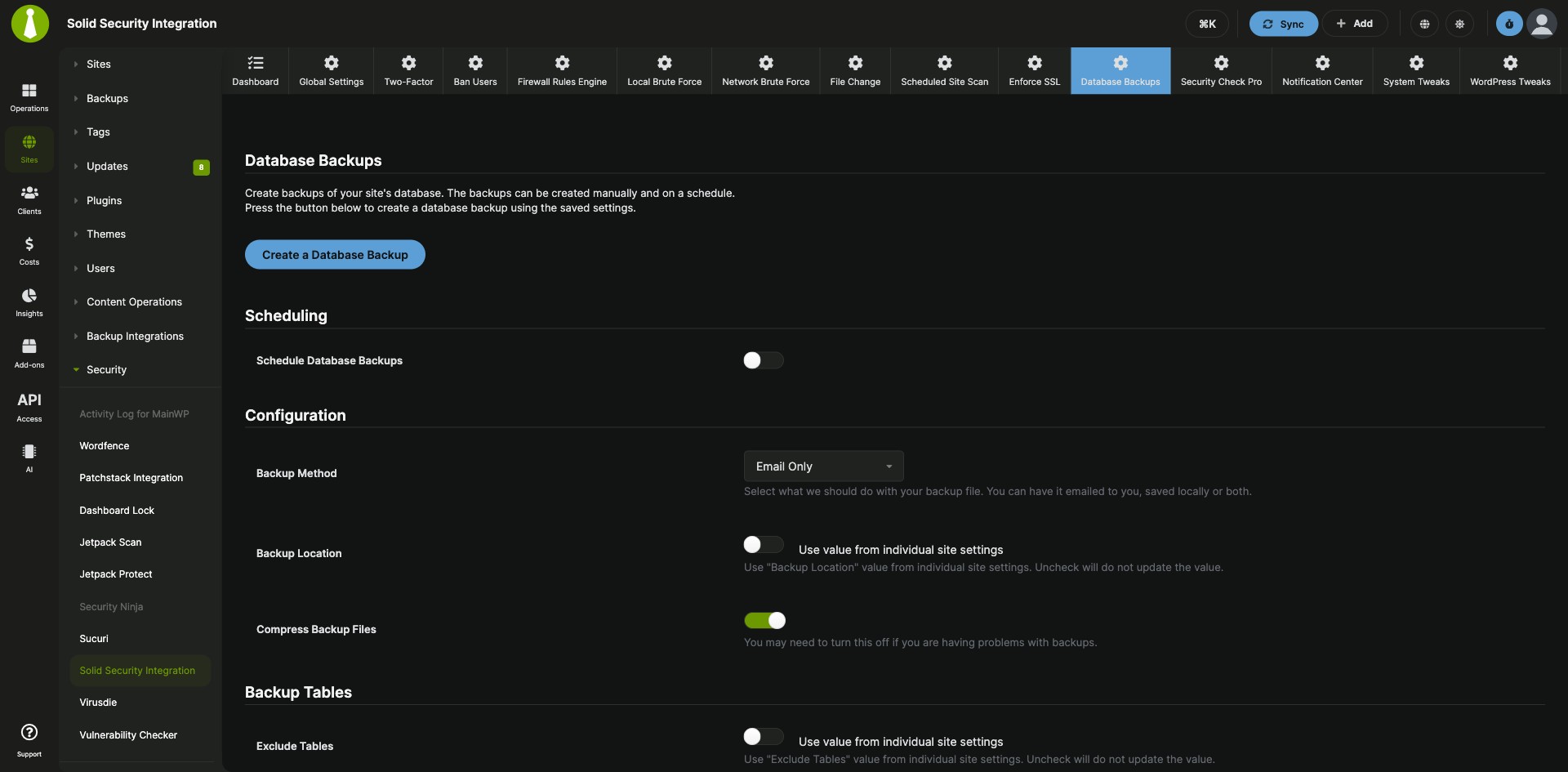

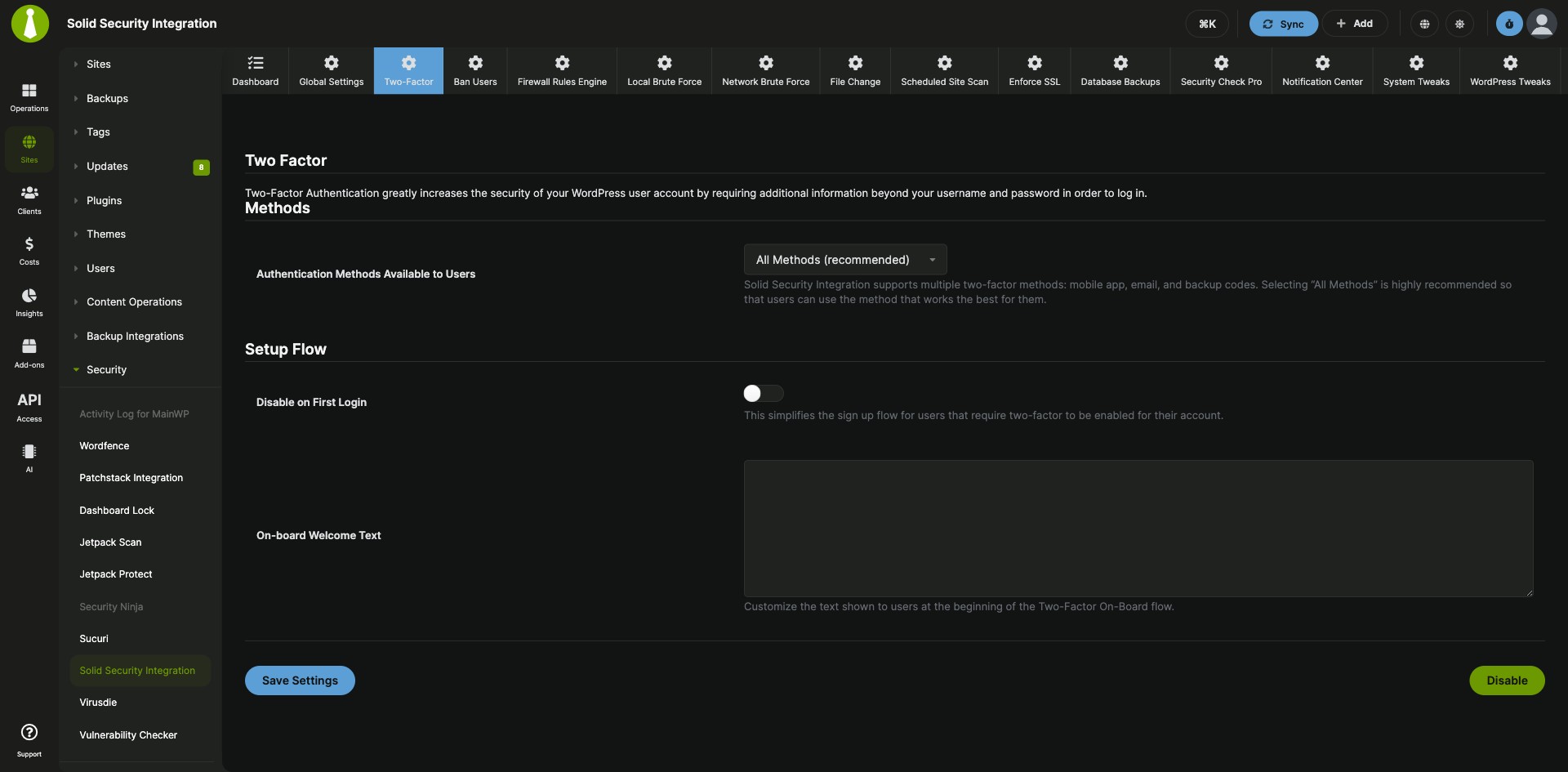
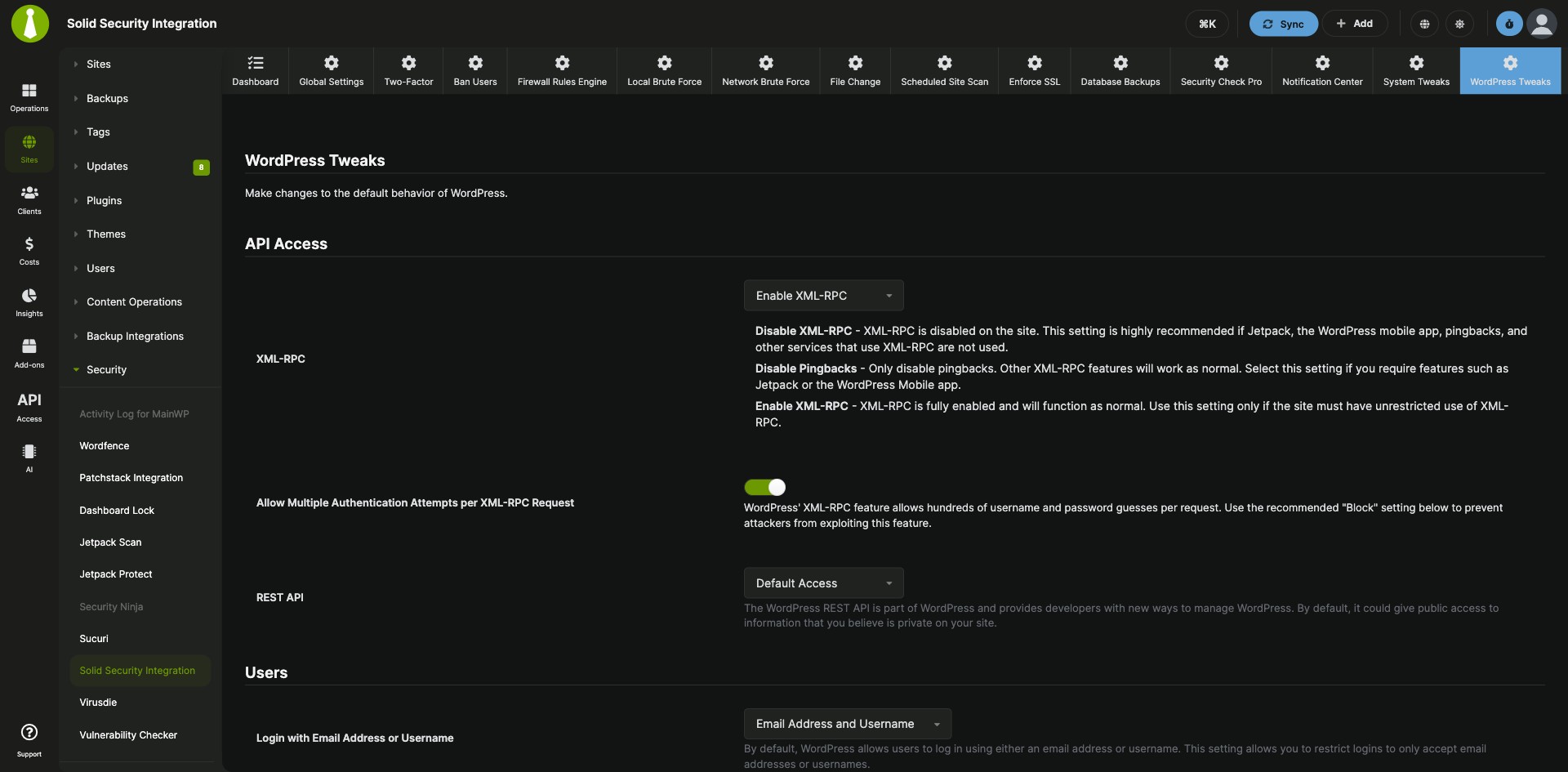


Configure Solid Security once and send it to every child site
The Solid Security Integration is a Pro MainWP add-on that lets you apply Solid Security (formerly iThemes Security) settings to all your child sites at once, release lockouts, and check each site’s security status. From your MainWP Dashboard you can also give one site its own settings and add Solid Security scans to client reports.
Security admin across many client sites
Solid Security is configured on each site, so changing an option or releasing a lockout means opening that site’s WP Admin, then doing the same on the next site. The Solid Security Integration moves that to MainWP: you set the options once and send them to all your child sites, release lockouts from each site’s overview page, and see every site that runs Solid Security in one list.
Features
The Solid Security Integration adds an overview page, shared and per-site settings, two site widgets and report tokens to your MainWP Dashboard.
| Feature | What it means for you |
|---|---|
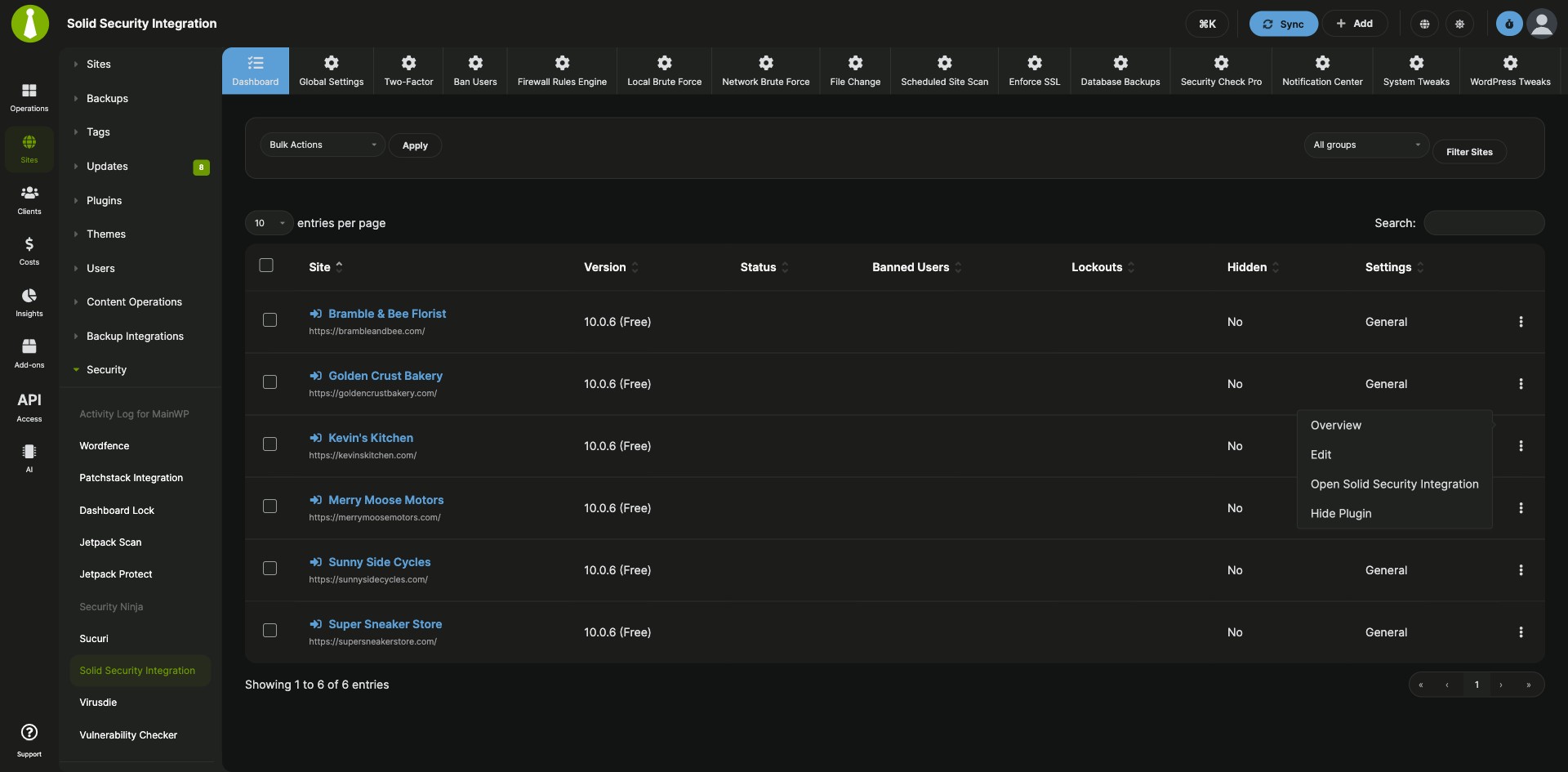
| Solid Security overview | See every child site that has Solid Security installed on the Add-ons > Solid Security Integration > Overview page. An Update Plugin action appears when a new plugin version is available and an Activate Plugin action when the plugin is deactivated. From the actions menu you can hide or unhide the plugin on a child site, open its settings, or go to its WP Admin. |
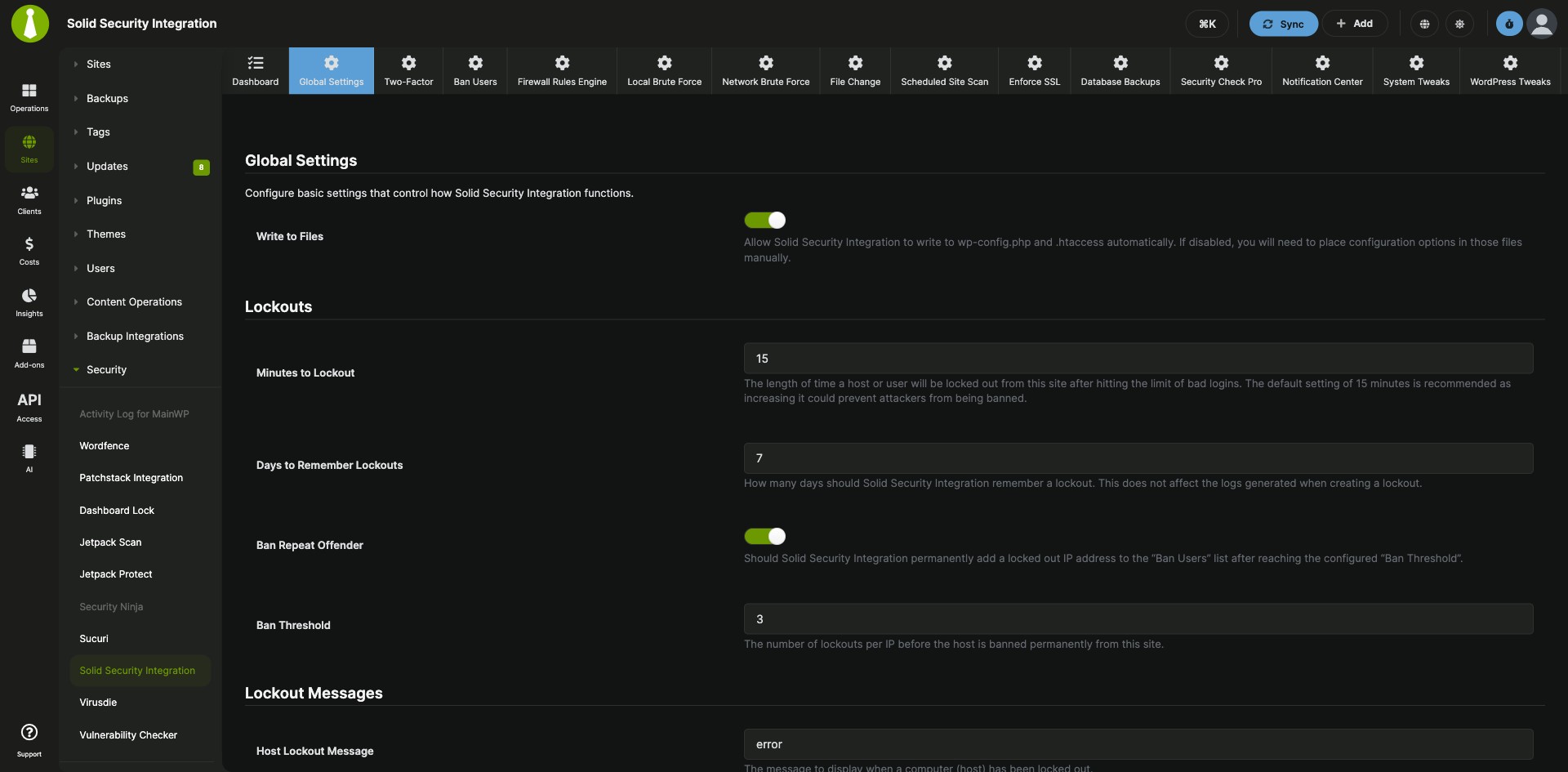
| Settings for all sites | Set Solid Security options once and save them to all your child sites. |
| Per-site settings | Turn on Override General Settings for any site that needs its own Solid Security configuration. |
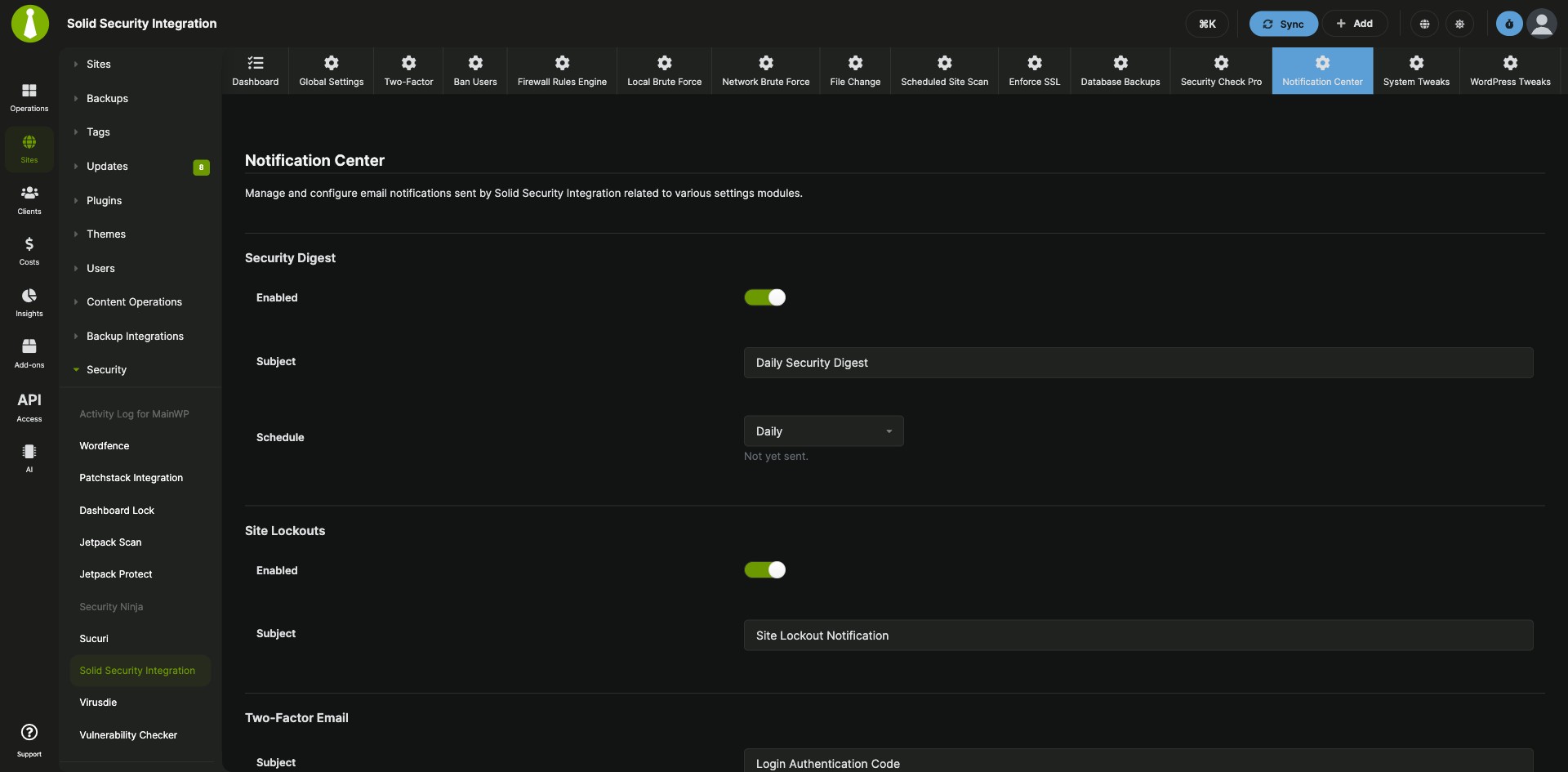
| Settings you can manage | Global Settings, File Changes, SSL, Notification Center, Admin User, Change Database Table Prefix, Ban Users, Database Backups, Local Brute Force, Network Brute Force, Two-Factor, System Tweaks, WordPress Tweaks, Hide Backend and Security Check Pro. |
| Active Lockouts widget | See all active lockouts on a site’s overview page in MainWP and release them from the widget. |
| Security Status widget | See a site’s security issues grouped by priority. The Fix Now button next to each issue takes you to the matching option in that site’s settings. |
| Solid Security data in Pro Reports | Add Solid Security scans to client reports built with Pro Reports. List scans with [section.ithemes.scan][/section.ithemes.scan], and show totals with [ithemes.scan.count], [ithemes.blocked.count] and [ithemes.lockout.count]. |
Requirements
The Solid Security Integration goes on your MainWP Dashboard, and the Solid Security plugin goes on each child site you manage.
| Item | Requirement |
|---|---|
| License | MainWP Pro |
| MainWP Dashboard | The Solid Security Integration installed on your Dashboard site |
| Child sites | The Solid Security plugin installed and activated on each child site you want to manage |
| Solid Security Pro (optional) | The integration works with the free or Pro version of Solid Security and manages its free features. Paid features may need a license from the plugin’s author. |
| Pro Reports (optional) | The Pro Reports Extension. Scheduled scans show in reports once WP Cron Tracking is on in the MainWP Child settings of each child site. |
Setup: plugins, shared settings, site overrides
Setting up the Solid Security Integration starts with the plugins and shared settings; per-site overrides and the Pro Reports step are there when you need them.
Install the integration and the Solid Security plugin
- Install the Solid Security Integration on your MainWP Dashboard, the same way as any other MainWP add-on.
- In MainWP, go to Sites > Plugins > Install Plugins and search for Solid Security (formerly iThemes Security).
- Select Install this Plugin, then select your child sites.
- In the Installation Options box, keep Activate after installation selected and complete the installation.
- Sync your sites so your Dashboard detects the plugin.
Apply settings to all your sites
- Go to Add-ons > Solid Security Integration.
- Open the settings tab you want at the top of the page.
- Set your preferences.
- Save the settings at the bottom of the page to send them to all your sites.
Give one site its own settings
- Go to Sites > Manage Sites and open the site’s overview.
- Open the Solid Security Integration page for that site.
- Open the settings tab you want at the top of the page.
- Turn on Override General Settings and click Save Settings at the bottom of the page.
- Set your preferences and click Save Settings.
Show scheduled scans in Pro Reports
- Log in to the WP Admin of a child site.
- Go to Settings > MainWP Child > Child Reports Settings.
- Enable WP Cron Tracking and click Save Changes.
Full instructions for settings, widgets and the overview page: Solid Security Integration documentation.
What runs on the child site and what runs in MainWP
The Solid Security Integration runs on your MainWP Dashboard and controls the Solid Security plugin on each child site. The plugin on each child site does the security work, and the integration reads its status and sends it your settings. Your Dashboard learns that Solid Security is installed on a site when that site syncs.
Solid Security FAQ
Does the Solid Security Integration work with Solid Security Pro?
The Solid Security Integration works with Solid Security Pro as well as the free version, and it manages the plugin’s free features. Paid Solid Security features may need a license from the plugin’s author, on top of MainWP Pro for the integration.
Can one site use different Solid Security settings from the rest?
One site can use its own Solid Security settings once you turn on Override General Settings for it. Open the site from Sites > Manage Sites, go to its Solid Security Integration page, turn on Override General Settings, and click Save Settings.
How do I get scheduled Solid Security scans into Pro Reports?
Scheduled Solid Security scans show in Pro Reports once WP Cron Tracking is enabled in the MainWP Child plugin. On each child site, go to Settings > MainWP Child > Child Reports Settings, enable WP Cron Tracking, and click Save Changes.
Where do I get support?
The Solid Security team handles issues with the Solid Security plugin itself. MainWP support handles issues with the integration.